Text Change Calculator
Tracking progress is easy while you're drafting — the word count goes up. Revising and editing is harder. You might spend three hours reworking a chapter and end the session with a lower word count than you started with, even though you did real work.
The Text Change Calculator measures that work. Paste in the text from the start and the end of a work session, and it tells you how much actually changed.
> This is a Beta tool. <
Where to find it
Go to Tools → Text Change Calculator in the main menu, or visit pacemaker.press/tools/text-change-calculator.
You don't need an account or a subscription to use it.

How to use it
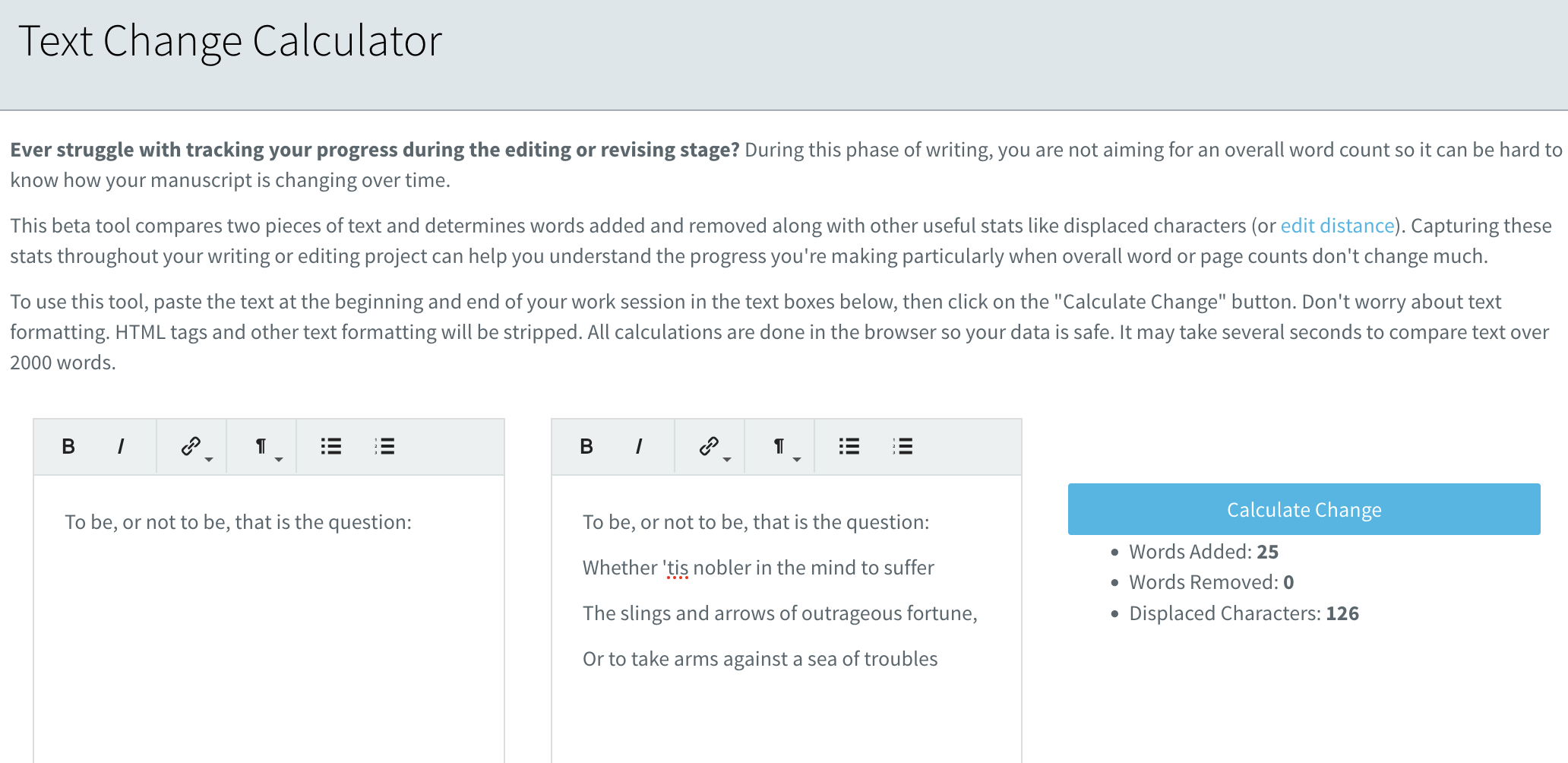
- Before you start a work session, paste your text into the left box.
- Then go back to doing your writing, editing, or revising.
- At the end of the work session, paste the new version into the middle box.
- Click Calculate Change.
Your results appear on the right.
Don't worry about formatting. You can paste straight from Word, Google Docs, or Scrivener — HTML tags and text formatting are stripped automatically before anything is compared.
What the numbers mean
Words Added — words present in the new version that weren't in the old one.
Words Removed — words present in the old version that are gone from the new one.
These two are counted independently, so they're both usually greater than zero during a revision pass. That's the point: a session where you added 400 words and removed 380 shows up as real work, even though your total word count only moved by 20.
Displaced Characters — the number of single-character changes (insertions, deletions, or substitutions) needed to turn the old text into the new text. This is also known as edit distance. It's the most sensitive of the three measures, and it's the one that best reflects line-level polishing — fixing punctuation, swapping a word for a better word, tightening a sentence. Unlike the word counts, this measure includes changes to spacing and line breaks.
Ways to use it in a plan
The calculator doesn't log progress to a plan automatically — it's a standalone measuring tool. But its output makes a good manual progress figure for revision work:
- Track a revision plan in "words changed." Create a plan with a target measured in words, then log
Words Added + Words Removedafter each session. - Track polishing in displaced characters. For a late-stage copyedit where word counts barely move, use Displaced Characters as your unit of progress.
- Set an honest daily target. Run the calculator on a few typical sessions first to find out what a normal day of revision actually looks like for you, then build your plan around that number.
Notes and limits
- Your text never leaves your browser. All comparison happens on your own device. Nothing is uploaded to Pacemaker, and nothing is saved — so keep your own copies of the text you're comparing.
- Because nothing is saved, results disappear when you leave the page. Note down the numbers you want to keep, or log them to a plan before navigating away.
- Large texts take a moment. Comparing more than about 2,000 words can take several seconds. The page will look idle while it works — give it a few seconds before clicking again.
- Compare like with like. The tool compares whatever is in the two boxes. If you paste a whole manuscript on one side and a single chapter on the other, it will faithfully report that you removed most of your book. Compare the same section before and after.