Browsing the Pacemaker Community
Pacemaker has four pages that show you what other people are working on. They're useful for two things: finding a realistic pace to model your own plans on, and getting a nudge when your own plan has stalled.
All four show other users' public work, not your own.
Recently Updated Goals
There are three ways to access this dashboard.
- When you log in, go to the menus on the left-hand side. Click Community Plans which will open the Recently Updated Goals dashboard.
- Alternatively, you can click on pacemaker.press/plans/recent
- Or in the top menu bar, click on the Community dropdown then Recent User Plans
The dashboard displays the progress other Pacemaker users have made on their public plans. It is sorted by the most recent or newest update first. This is the liveliest of the four pages because it changes throughout the day.

At the top there are two filters to narrow the list of plans:
- Activity Being Done — writing, editing, translating, and so on.
- Content Created — novel, thesis, screenplay, blog, and so on.
Set both to find people doing your kind of work. If you're writing a dissertation, filtering to activity \= writing and content created \= thesis, will give you a much better sense of a sustainable pace.
At a glance, each card includes several pieces of information:
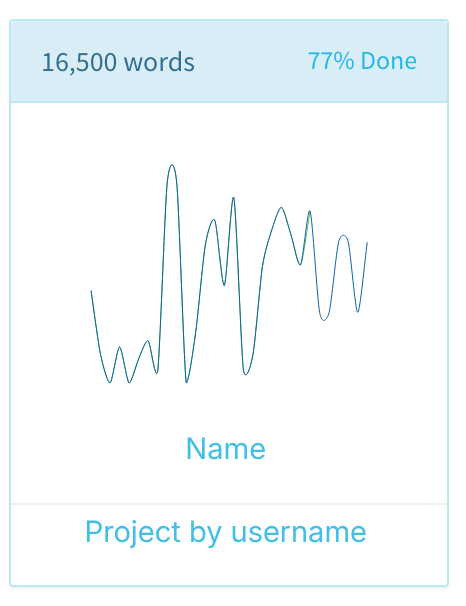
- Top row: The plan goal and percent completion
- Middle: A chart of the progress. If you hover over the graph, you can see the amount logged per day.
- The name of the plan
- Bottom row: The type of content created and username
Click any plan card to open it and see more detail.
The Hall of Completions
In the top menu bar, click the Community dropdown then Completed User Plans, or pacemaker.press/plans/completed to get to the Pacemaker Hall of Completions.
Use this page to get inspiration from others. This dashboard includes public plans that reached 100% of their goal. It is sorted by most recently updated first.
Each card is laid out and functions in the exact same way as they did in the Recently Updated Goals.
The Template Gallery
In the top menu bar, click the Community dropdown → Template Gallery, or pacemaker.press/templates to access the gallery.
Welcome to a list of Public templates that other users have built and shared. Unlike the plan pages, this one is directly actionable: pick a template and start a plan rather than building your own from scratch. It can be filtered by activity and content type.
See Reusable Templates for how to make and share your own.
All Challenges
To see all challenges, go to the Community dropdown → Join a Challenge or pacemaker.press/challenges/all
You’ll see a list of every public challenge, whether or not it has started. This is also where to look for a group to join if nobody has sent you a challenge link directly.
See Joining a Challenge for what happens next.
A note on the Hall of Completions
The Hall of Completions shows other people's finished plans. It is not your personal archive.
To find your own finished plans, go to your dashboard and open the Archives tab. See Understanding Your Dashboard and Archiving and Deleting Plans.
What appears here, and what doesn't
Only public items are ever listed on these pages.
By default your plans, projects, checklists, and templates are public, which means they can appear in these listings and be opened by anyone browsing. If you'd rather they didn't, Premium subscribers (Lite and Pro) can mark individual plans and templates private. Private items never show up on any of these four pages.
Two things worth knowing:
- Being listed doesn't make a plan editable by anyone else. These pages show your plan and your progress. They don't hand over the ability to change your plan or log progress on it.
- Cancelling a paid subscription makes private items public again when they are saved next, which means previously hidden plans can start appearing in these listings. See Public and Private Items before you cancel.