Discussion Boards
What is the Challenge Discussion board?
Every challenge has a discussion board at the bottom of its page (on team challenges, it's the Discussion tab). It's a single feed where participants swap notes, ask for help, share wins and cheer each other on. Posts can carry links, images and polls; replies nest so conversations stay readable; and you can react, follow threads you care about, and get told when something happens that involves you.
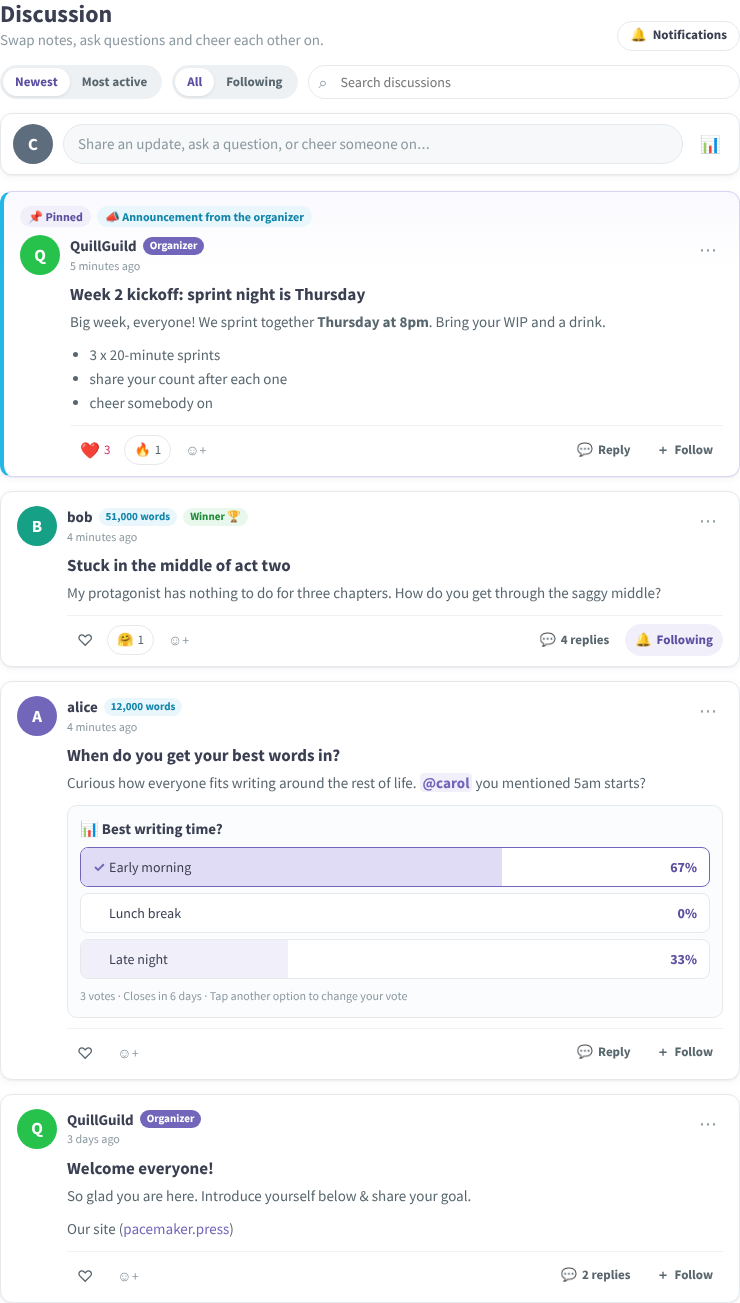
Anyone can read a challenge's discussion if they can see the challenge. To post, reply or react you need to be signed in to Pacemaker (a free account is fine).
Posting
Starting a discussion
- Scroll to Discussion on the challenge page and click "Share an update, ask a question, or cheer someone on…".
- Add a title if you like (optional), then write your post.
- Click Post.
A few things you can do in the text:
- Mention someone: type @ and start their name, then pick them from the list. They get a notification. You can mention people in the challenge and anyone already in the conversation.
- Links: paste a web address and it becomes a link.
- Formatting: **bold**, *italic*, lines starting with "- " become a list, and lines starting with "> " become a quote.
- Images: click the picture icon to attach up to four images to a post (one per reply). Large photos are shrunk before upload.
Adding a poll
Click the poll icon in the composer (the bar-chart symbol). Ask a question, give two to six answers, and pick the day the poll closes. Everyone gets one vote and can change it until the poll closes. By default, results stay hidden until you've voted; tick "Show results before people vote" if you'd rather everyone sees them straight away.
Editing and deleting
Open the ⋯ menu on your own post or reply to Edit or Delete it. Deleting removes the words for everyone; if a deleted reply had answers, those stay, under a "Reply deleted" placeholder, so the conversation still makes sense.
Replies and conversations
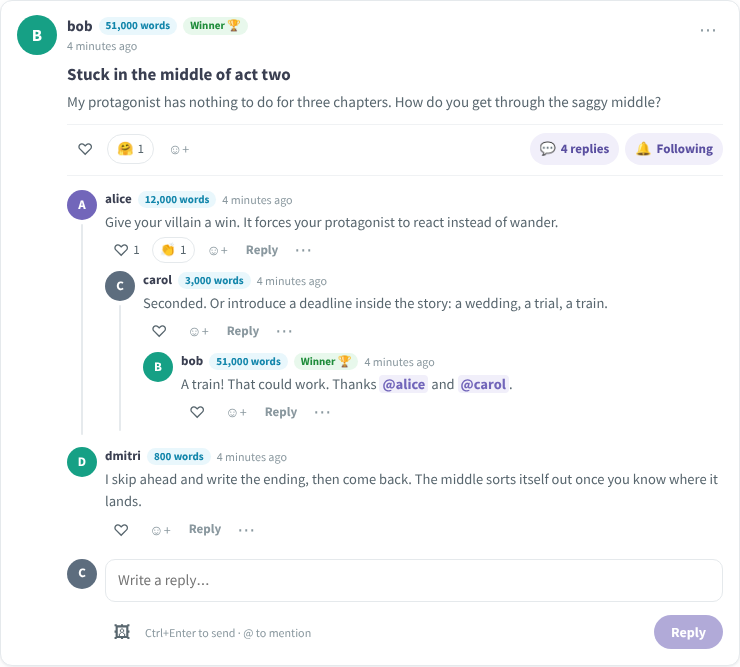
- Click Reply (or the reply count) under a post to open the conversation. Write at the bottom to reply to the post, or click Reply under any reply to answer that person directly. Replies nest as deep as the conversation goes.
- Click the thin line beside a reply to collapse its branch; click "+ Show N replies" to open it again.
- On a phone, deep branches show "Continue this thread →", which opens that branch on its own with a way back. Nothing is lost; it's just easier to read on a narrow screen.
- Ctrl+Enter (Cmd+Enter on a Mac) sends a reply.
Reactions
Tap the ♡ under a post or reply to love it, or the ☺+ button to pick another reaction (👏 😂 🔥 🎉 🤗 🤔). Tap a reaction again to take it back. Reactions never send notifications, so react freely.
Following threads
Following a thread means you hear about new replies in it. You're automatically following anything you post or reply to. To follow a conversation you haven't joined, click Follow under the post. Click Following to stop.
- Following at the top of the board shows only the threads you follow.
- Mute (in a post's ⋯ menu) keeps a thread in your Following list but stops its notifications, even for direct replies to you. Choose Unmute from the same menu to switch them back on.
Finding things
- Newest shows the latest posts first. Most active brings the busiest conversations to the top.
- Search looks through titles, posts and replies in this challenge.
- When you come back after a while, the board tells you how many new posts and replies have arrived since your last visit, new posts carry a New marker, and reply counts show "N new".
- Pinned posts and announcements from the challenge leader always sit at the top.
Notifications
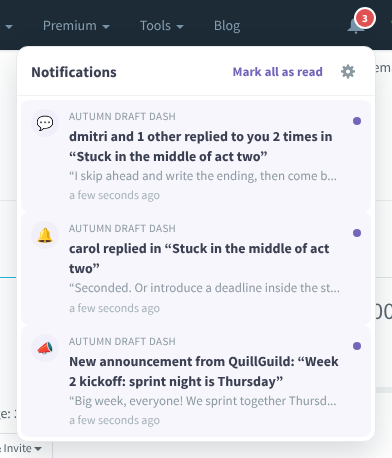
The bell in the top bar shows what needs your attention across all your challenges:
- replies to your posts or your replies
- @mentions
- announcements from a challenge leader
- new activity in threads you follow
Several replies in the same thread fold into one line ("bob and 2 others replied to you 4 times in …"), so a busy evening doesn't flood the bell. Click an item to jump straight to that reply; opening a thread marks its notifications read. Mark all as read clears the lot.
You choose how discussion notifications reach your inbox. Click the ⚙ in the bell, the 🔔 Notifications button on any board, or go to Account Settings → Notifications → Challenge Discussions:
- Right away: one email whenever something new happens, at most every 15 minutes.
- Daily digest: one email a day with everything you missed, grouped by challenge. If there's nothing new, no email is sent.
- Never: in-app notifications only.
If you joined or created a challenge after discussions launched, you start on the daily digest. If you were already in a challenge before then, you're on Never until you switch it on. Emails only ever contain things that involve you, never everything posted in a challenge, and anything you've already read in the app is left out. Every email has an Unsubscribe link and an Email preferences link. Unsubscribe stops all discussion emails at once; use Email preferences to turn them back on. The bell keeps working either way.
Reporting a post
If something on the board shouldn't be there, open its ⋯ menu and choose Report to organizer. The challenge leader gets a notification with a link to it and can hide or remove it. You can report each post once; the content stays visible until the leader acts.
For Challenge Leaders
As the challenge's creator you're shown as Organizer on the board, and the ⋯ menu on every post and reply gives you extra controls:
- Announcements: when writing a post, tick "Post as an announcement". It's highlighted on the board and every participant is notified (and emailed, per their setting). Only the challenge leader can post announcements.
- Pin to top: keep up to three posts at the top of the board.
- Lock: turn off replies on a post (and back on).
- Hide from participants: take a post or reply out of view without deleting it. You and its author still see it, marked "Hidden"; replies underneath stay. Unhide restores it.
- Delete: remove a post or reply for everyone. This can't be undone, so hide first if you're unsure.
You automatically follow every post made in your challenge, you're told when a new discussion starts, and reports from participants land in your bell. Mute any thread you don't need to hear about.
Frequently Asked Questions
Q: Who can see what I post? A: Anyone who can see the challenge. On a public challenge that's anyone with the link; on a private challenge, only its participants and leader.
Q: Why doesn't my challenge have a discussion board? A: Discussion boards appear on challenges set up for more than three plans. Small challenges don't have one.
Q: I'm not getting any emails. A: Check Account Settings → Notifications → Challenge Discussions: it may be set to Never, which is the starting point for anyone who was already in a challenge before discussions launched. If it's set but emails still don't arrive, you may have clicked Unsubscribe in an earlier email; use the Email preferences link in any Pacemaker email to turn them back on. The daily digest is also silent on days with nothing new for you.
Q: Do other people get notified when I react? A: No. Reactions are quiet. Only replies, mentions, announcements and activity in followed threads notify anyone.
Q: Can I turn off notifications for one thread but keep the rest? A: Yes. Open the post's ⋯ menu and choose Mute notifications. You'll still see it under Following.
Q: What happened to the old discussion posts? A: They're all still there, with their authors and dates, shown in the new board.
Q: Can a participant post an announcement? A: No. Announcements are the challenge leader's. Anyone can start a normal post.
Q: Can I change my vote in a poll? A: Yes, until the poll closes. Tap another answer.