Syncing with Google Docs
Automatically track your writing progress from Google Docs
Connect your Google account once, and Pacemaker will sync your word count from specific Google Docs to your writing/editing/etc plans hourly —no manual updates needed.
What is Google Docs Auto-Sync?
Google Docs Auto-Sync allows you to write in Google Docs while Pacemaker automatically tracks your progress. Instead of manually entering your word count after each writing session, Pacemaker reads your document and updates your plan for you.
How it works:
- Connect your Google account to Pacemaker (one-time setup)
- Link a Google Doc to your writing plan
- Pacemaker automatically syncs your word count every hour
- Watch your progress update automatically as you write
Who is this for?
You’ll get the most out of it if:
- You write, edit or journal primarily or occasionally in Google Docs
- You want automatic progress tracking
- You're tracking your work in word count (other measures to be added in the future depending on interest)
- You’re okay with a few beta quirks while we refine things until July 2026
Getting Started
Step 0: Set up your timezone in Pacemaker
If you haven't already, set up your timezone and date settings in Pacemaker so that your Google doc progress is logged on the right date. Do this on Account Settings page. For now, you'll need to turn on email reminders to set your timezone.

If you don't do this, the default will be assuming UTC time.
Step 1: Connect Your Google Account
Before you can sync documents, you need to connect your Google account to Pacemaker.
- Go to your Account Settings page
- Find the Google Docs Integration section
-
Click Connect Google Account

-
You'll be redirected to Google to approve access
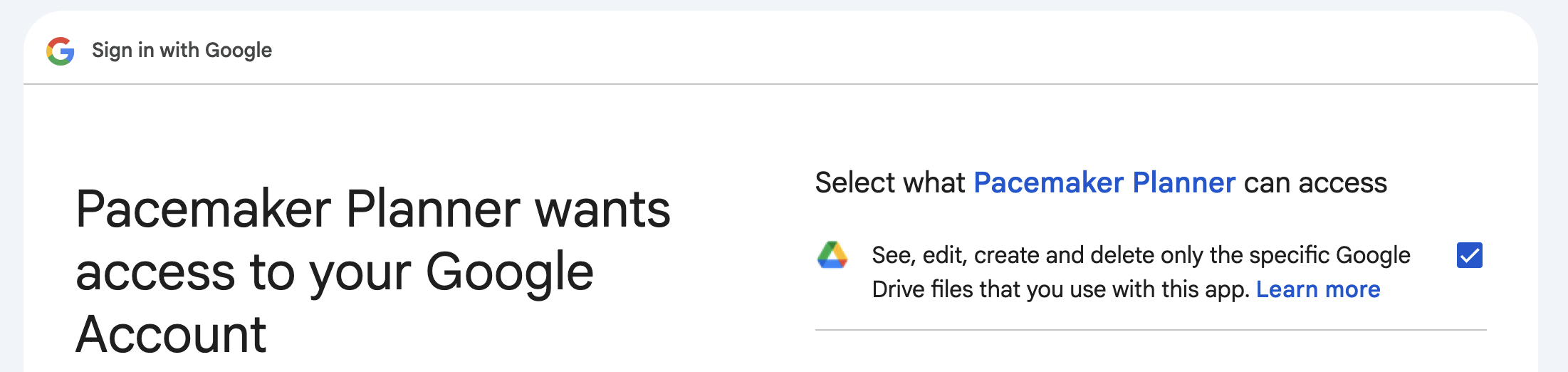
- Grant Pacemaker permission to read specific Google Docs that your pick
- You'll be returned to Pacemaker with your account connected
Once connected, you'll see your Google account email displayed in your settings:

📝 Note: Pacemaker only reads documents you explicitly connect to plans. We never access documents you haven't chosen to sync.
After connecting your Google account, you can link Google Docs to your writing plans.
- Create and save a new plan or Open the plan you want to sync
- Click on the. Progress tab, Click on the Google Docs Sync button then. click Connect Google Doc
- A document picker will appear showing your Google Docs
- Select the document you want to track
- Click Connect

Once connected, you'll see an indicator showing which document is synced:

How Syncing Works
Automatic Updates
Once a Google Doc is connected to your plan, Pacemaker will:
- Check your document's word count every hour
- Update your plan progress automatically
- Record the update with today's date (according to your timezone setting)
Sync Schedule
You can see when the next automatic sync will occur on your plan's progress page.
Manual Sync
Need an immediate update? Click the Sync Now button to trigger an instant sync.

What Gets Counted
Pacemaker counts words from your entire Google Doc, including:
✅ Body text ✅ Tables ✅ Headings
Multiple tabs (coming soon)
⚠️ Quirk: Google Docs dropdown chips appear as a single word in the count. The text inside the chip isn't included yet.
⚠️ Quirk: Special characters like arrows (→) and double dashes (--) are counted as separate words.
Managing Connected Documents
Viewing Connection Status
On your plan's progress page, you'll see:
- Which Google Doc is connected
- When it was last synced
- When the next sync will occur
Disconnecting a Document
To disconnect a Google Doc from your plan:
- Go to your plan's progress page
- Click Disconnect Document
- Confirm the disconnection
After disconnecting, you can resume tracking progress manually or connect a different document.
Switching Between Manual and Automatic Tracking
You can switch between manual entry and auto-sync at any time:
- To auto-sync: Connect a Google Doc to your plan
- To manual: Disconnect the Google Doc or add manual updates. Beware that the next automatic sync will add a new progress entry.
Your existing progress history is preserved when you switch methods.
Multiple Users, Same Document
If you share a Google Doc with other Pacemaker users, each person can connect it to their own plans. This is useful for:
- Writing partners working on shared projects
- Editors tracking client work
Each user's plan tracks the total word count independently.
Account Settings
Viewing Your Connected Account
Go to Account Settings → Google Docs Integration to see:
- Your connected Google account email
- How many plans are using auto-sync
- Option to disconnect
Disconnecting Your Google Account
To completely disconnect your Google account from Pacemaker:
- Go to Account Settings
- Find Google Docs Integration
- Click Disconnect
- Confirm the action
⚠️ Warning: Disconnecting will affect all plans using Google Docs auto-sync. You'll need to reconnect and re-link documents to resume automatic syncing.
Privacy & Security
What Access Does Pacemaker Have?
Pacemaker requests permission to:
- See your Google Docs so you can pick the one (s) you want to auto sync
- Read the content of documents you choose to connect
- Access your Google account email
What We Do With Your Data
- We only read documents you explicitly connect to plans
- We only extract word counts - no document content is stored
- Syncing happens automatically in the background once per hour
- You can disconnect anytime from Account Settings
- Any Tokens used to sync your content are encrypted and stored securely
Revoking Access
You can revoke Pacemaker's access at any time:
From Pacemaker:
- Go to Account Settings → Google Docs Integration → Disconnect
From Google:
- Visit your Google Account permissions
- Find "Pacemaker Planner" and remove access
Troubleshooting
My word count hasn't updated
Check these common issues:
- Is sync enabled? Make sure your Google Doc is still connected to your plan
- When was the last sync? Syncs happen hourly - check the "Last synced" timestamp
- Is your Google account still connected? Go to Account Settings to verify
- Note that if you've changed your password recently or if you have not synced any of your plans recently, you'll need to re-connect your google account.
- Start and End Dates? Syncing only works within the start and end dates of your plan in the timezone that you have configured in your account settings.
- Try manual sync: Click "Sync Now" to force an immediate update
- Have you been inactive for a while? If there are periods of Google sync inactivity, you will need to. Reconnect to Google from your settings page. While this feature is in beta - the inactivity window is 7 days. Afterwards, your credentials will be valid for up to 6 months before you need to reconnect.
The word count seems wrong
Possible causes:
- Multiple tabs: If your document has multiple tabs, make sure all tabs are being counted
- Special characters: Arrows (→) and dashes (--) count as separate words
- Dropdown chips: Only show as one word, not the text inside
- Different counting methods: Google Docs may count words slightly differently than other tools
I can't connect my Google account
Try these steps:
- Check your browser: Make sure popups aren't blocked
- Try a different browser: Some privacy extensions interfere with OAuth
- Clear your cache: Old session data can cause issues
- Check Google permissions: Make sure you haven't previously denied Pacemaker access in your Google account settings
The document picker doesn't show my doc
Possible reasons:
- The document is in a shared folder you don't own
- The document was created very recently (refresh and try again)
- You don't have edit or owner permissions for the document
Check the document details of your doc by navigating to File > Details and verifying key ownership info. Your doc should be in a folder you own and either owned or editable by you:

Frequently Asked Questions
Is this feature free?
Google Docs Auto-Sync is available as part of Pacemaker Pro Premium ($8/month). Learn more about Premium features →
Can I connect multiple Google Docs?
Currently, each plan can connect to one Google Doc at a time. You can connect different documents to different plans or the same doc to more than one plan. Up to you!
What happens if I delete the Google Doc?
If you delete a Google Doc that's connected to a plan, syncing will stop. Your existing progress history in Pacemaker remains intact, but no new updates will occur.
Can I still manually enter progress?
Yes! Even with auto-sync enabled, you can manually adjust your progress if needed. However, the next automatic sync will update to match the Google Doc's current word count.
What if my collaborator also uses Pacemaker?
If multiple Pacemaker users have access to the same Google Doc, each can connect it to their own plans. Each person's plan will track the document's total word count independently.
How do I know when my document will sync?
Check your plan's progress page - it shows "Next sync in: [time]" and "Last synced: [timestamp]".
What’s coming next
Planned improvements include:
- Better handling of multi-tab documents
- Expanded stats (line count, paragraph count, character count etc.)
- Possible Google Calendar integration if there is interest from the Pacemaker Community
Feedback wanted ❤️
Your feedback directly shapes what we build next.
If something looks off, please include:
- The Google Doc link
- The word count shown in Google Docs
- The word count shown in Pacemaker
- A screenshot of the plan progress page
Thank you for helping us build this. We’re excited to see how translators, editors, writers and other creators use this feature. ✨
Need Help?
Still have questions? Contact our support team using the help widget on the Pacemaker website - we're happy to help!